Capture the moment lightning strikes.
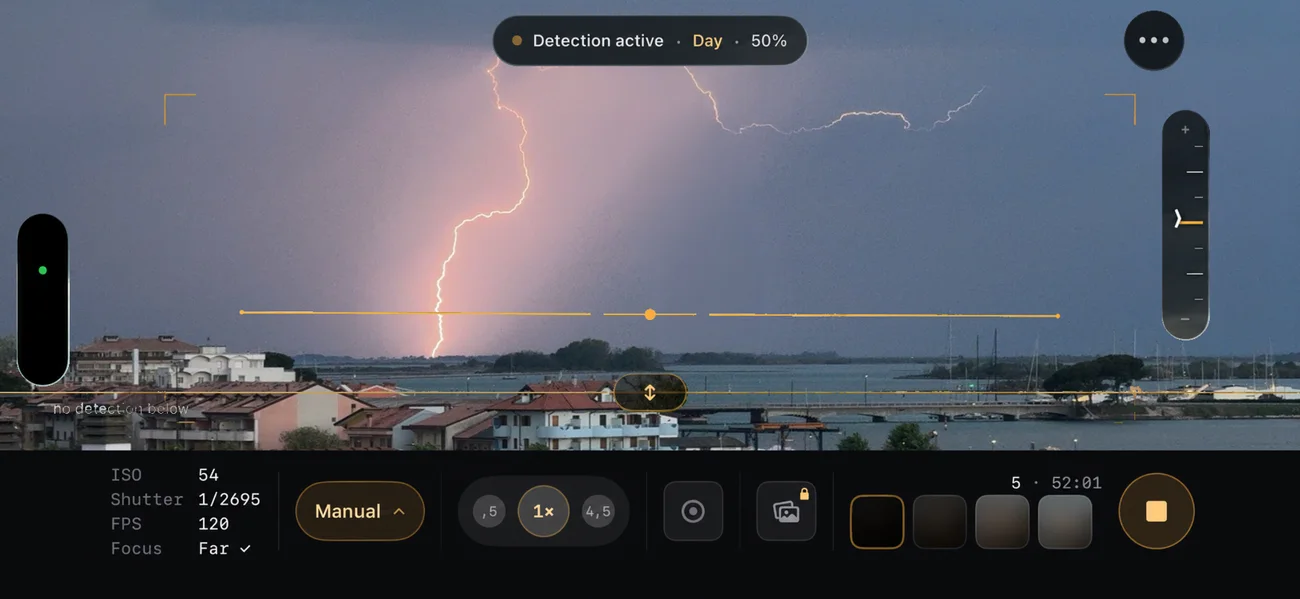
YOUR IPHONE. YOUR STORM. YOUR SHOT.
Lightning happens in an instant. Let your iPhone catch it — automatically. Explore every phase, then make the moment your own.
For iPhone and iPad · iOS 17 or later · free update for iLightningCam 2 owners
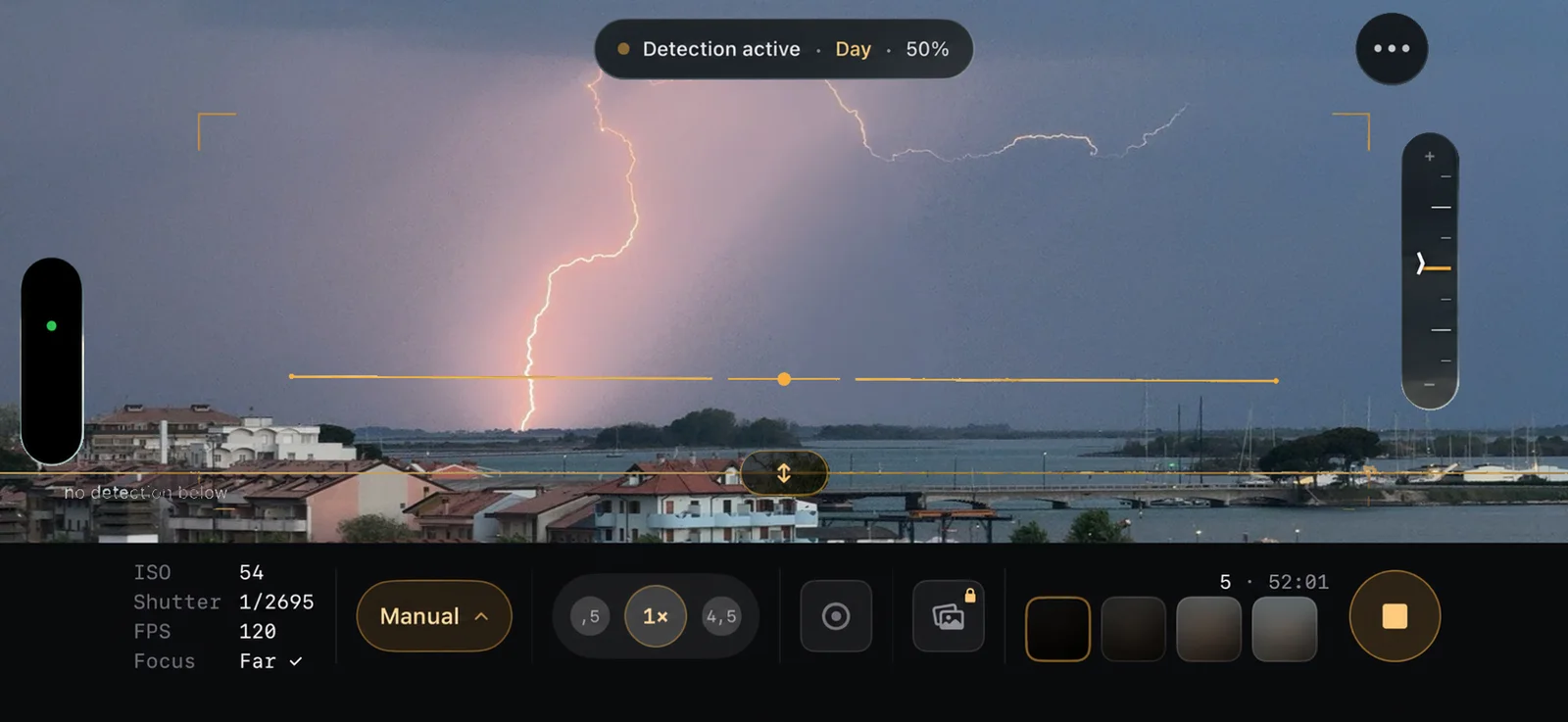
Background: Grado lagoon, Italy. Real iLightningCam photo, 2025, colors adapted. The scene in the iPhone is illustrative.
From the App Store
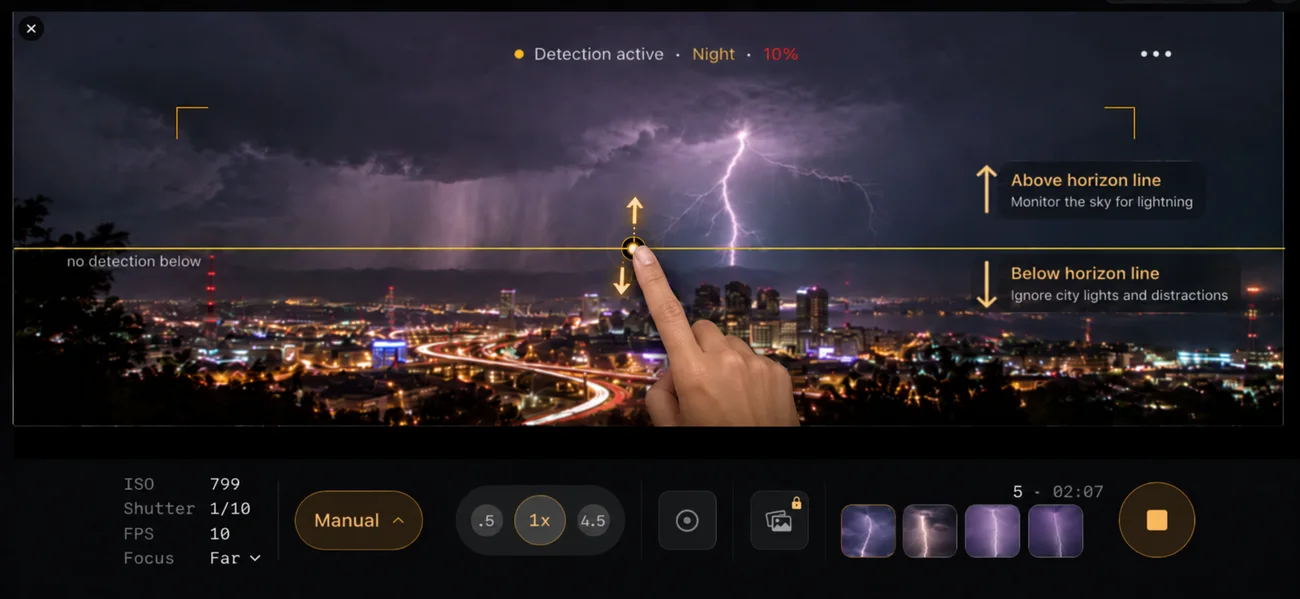
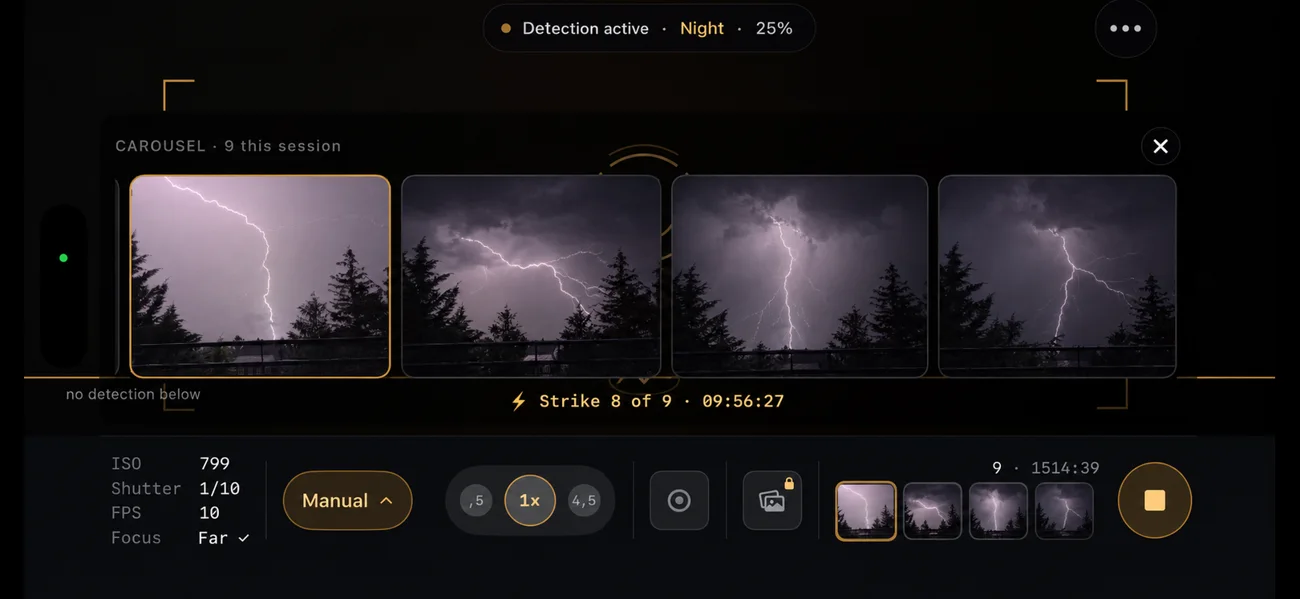
Card backgrounds from the App Store images (AI-generated). App screens unaltered; the first scene is illustrative.
Setting up · three steps
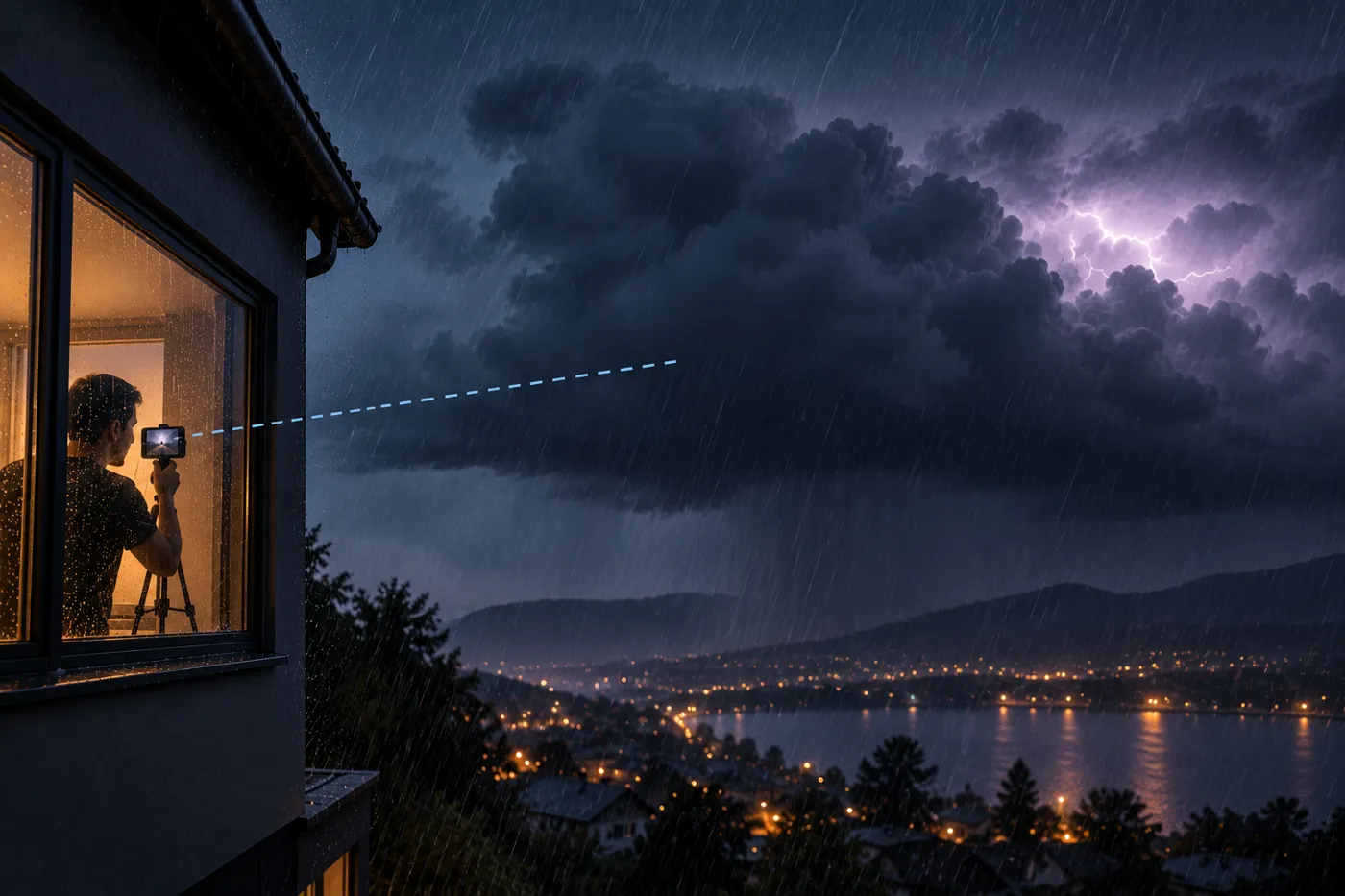
No shutter timing, no luck with the trigger finger. The app needs a steady view of the sky and a line that tells it where the sky ends.
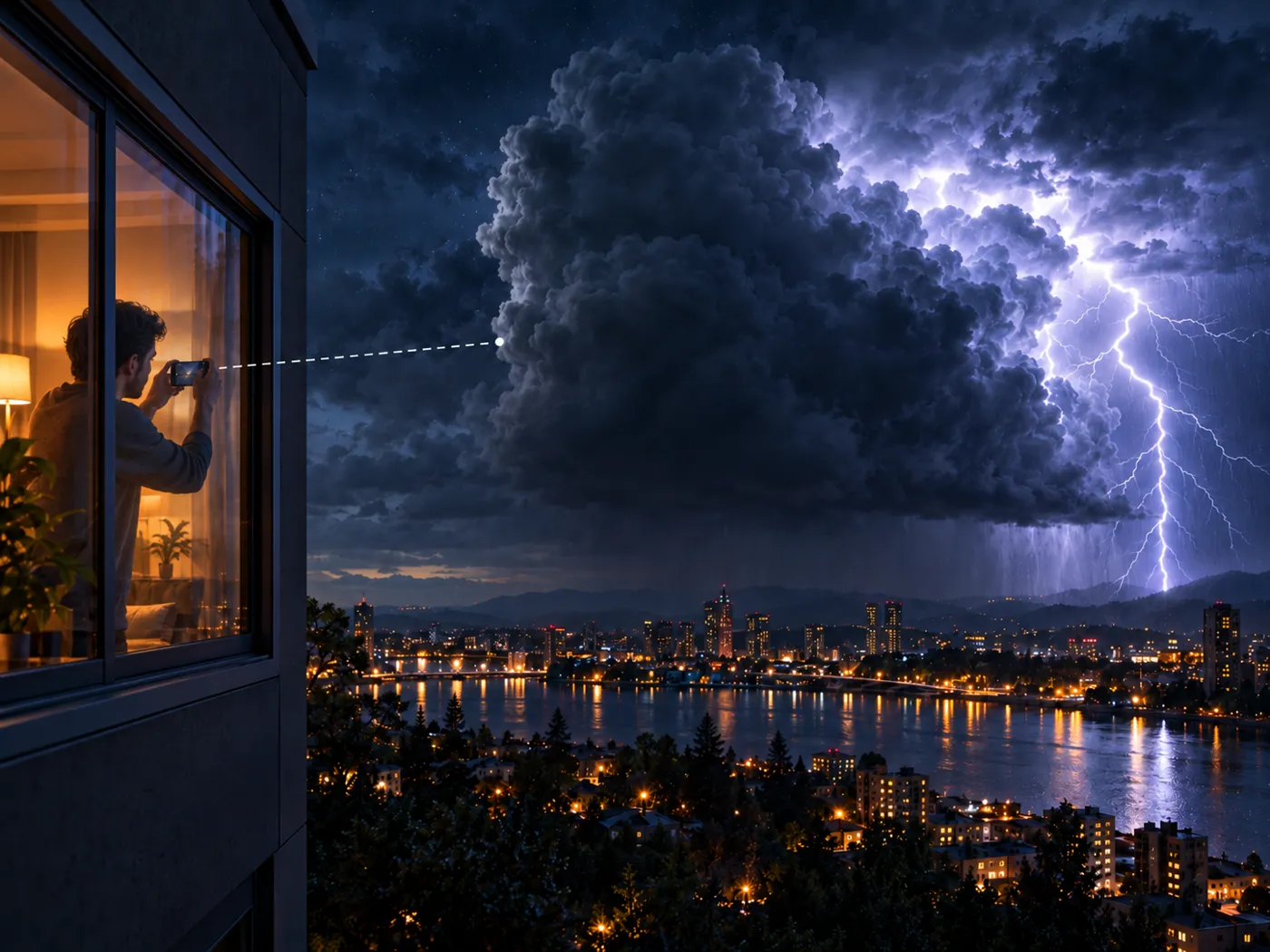
A small tripod, a stand or the windowsill. Keep the window closed. When the iPhone moves, detection pauses briefly so the movement is not mistaken for lightning.
Put the horizon in the lower third and drag the line just above the rooftops. Everything below it is ignored: cars, streetlights, lit windows.
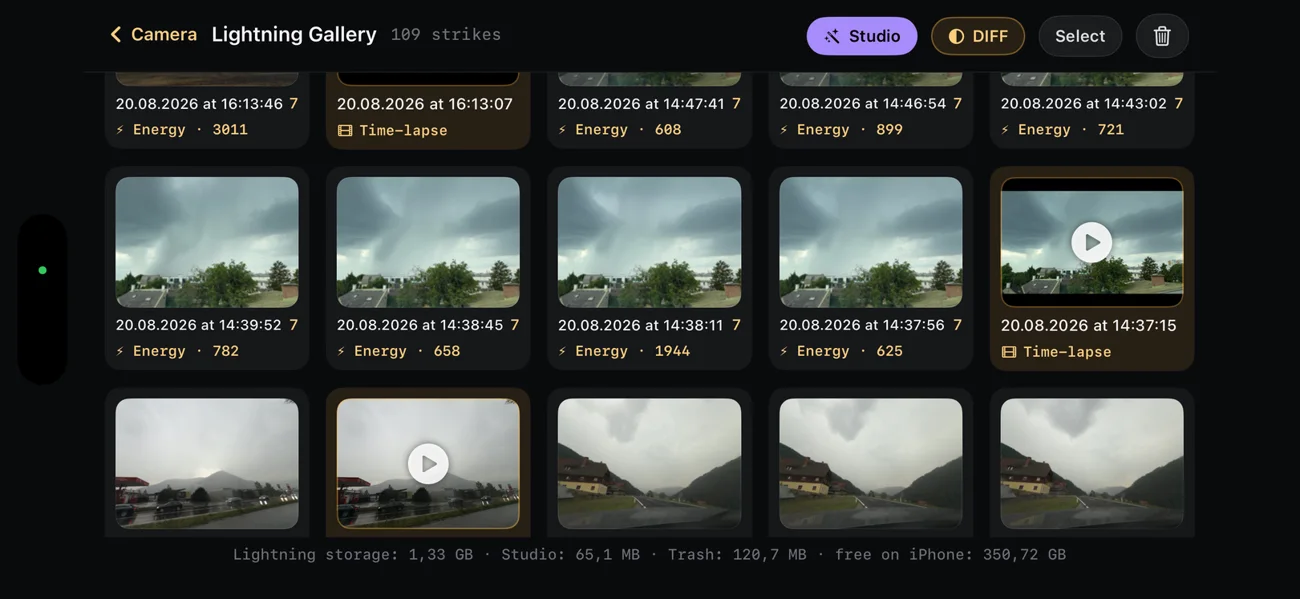
The pill says “Detection active”. The screen dims after a few seconds, detection keeps running, and every strike lands as a card in the Lightning Gallery.
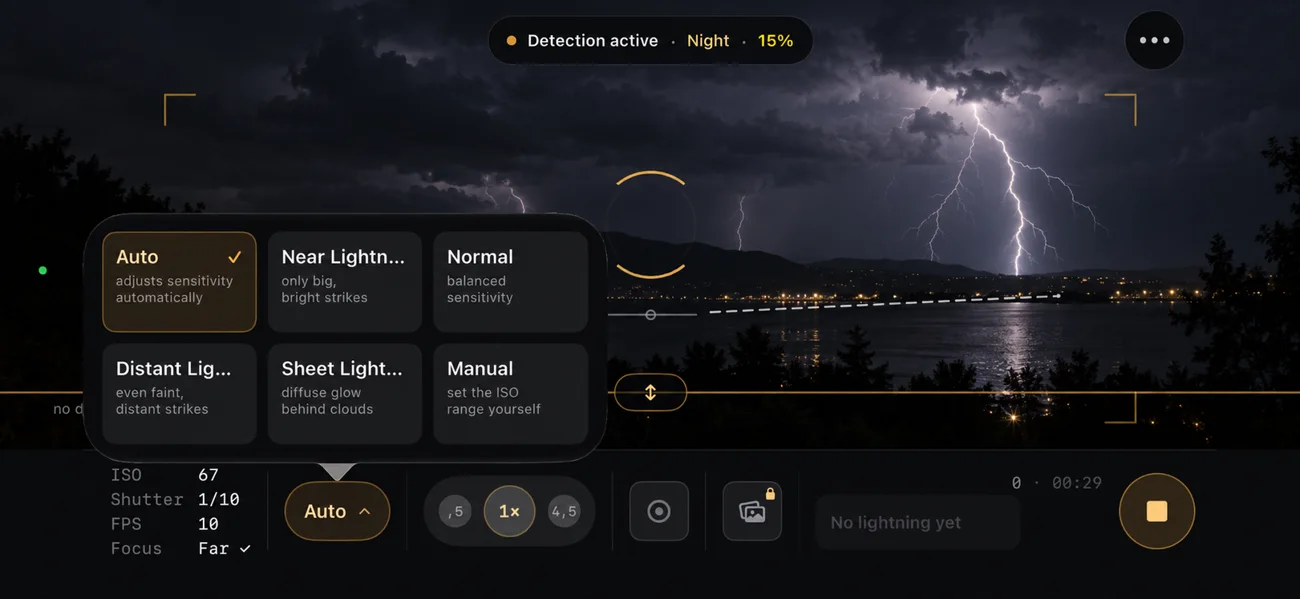
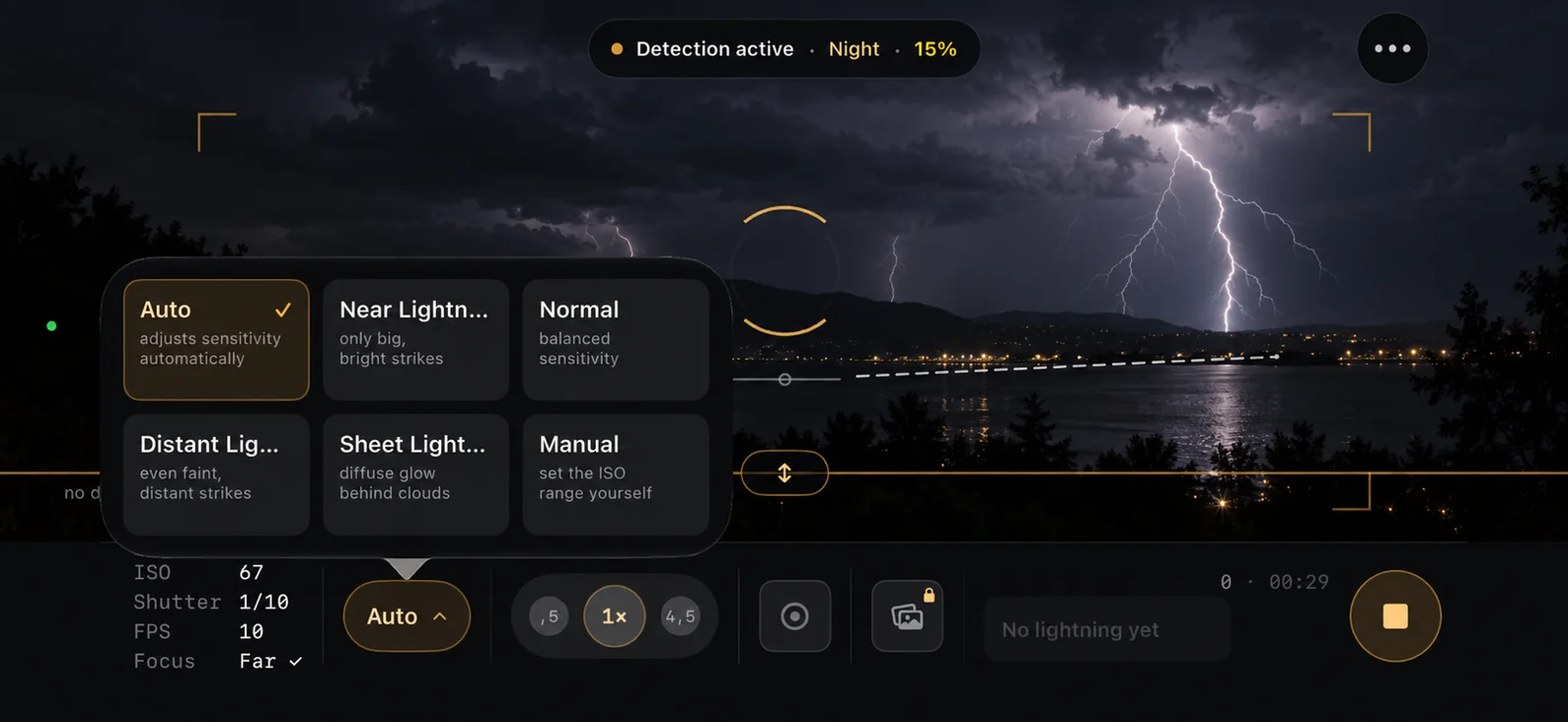
The mode menu
The mode sets how easily the app triggers, which matters most at night. Auto picks the sensitivity from the light and the latest strikes, and it is the right choice for most storms.
A flash flickers several times within a second. Each phase is kept.
In strobe-like storms the app pauses briefly so every image gets saved.
At night ISO stays low and exposure short, so a strike keeps its channel instead of turning into a white blob.
Every lens is calibrated to infinity once, then stored. No refocusing mid-storm.
DIFF
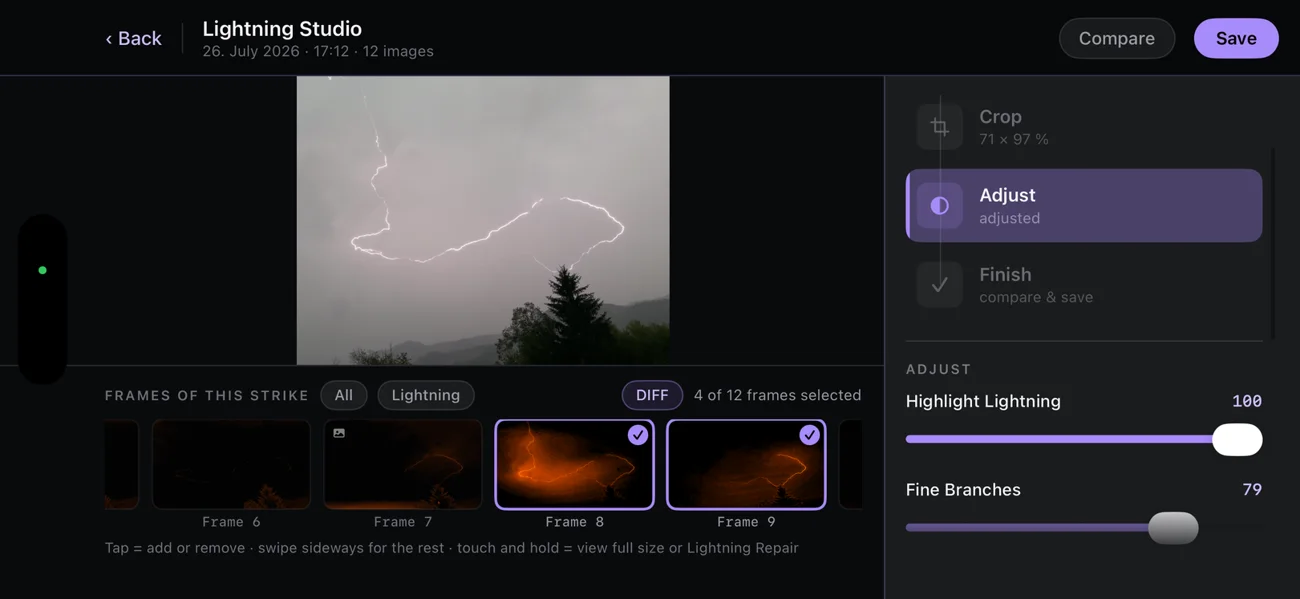
By day a lightning channel is barely brighter than the clouds behind it. DIFF shows only what changed from the previous frame. Houses, trees and cloud go dark. The strike stays bright.
Flip through every frame of a strike, see which ones hold a real channel and which only a glow, and keep the best. DIFF is a view only and never changes an image.
What the camera sees
Where the strike sits relative to the cloud and the rain decides what ends up in the frame. The manual explains it with real captures.
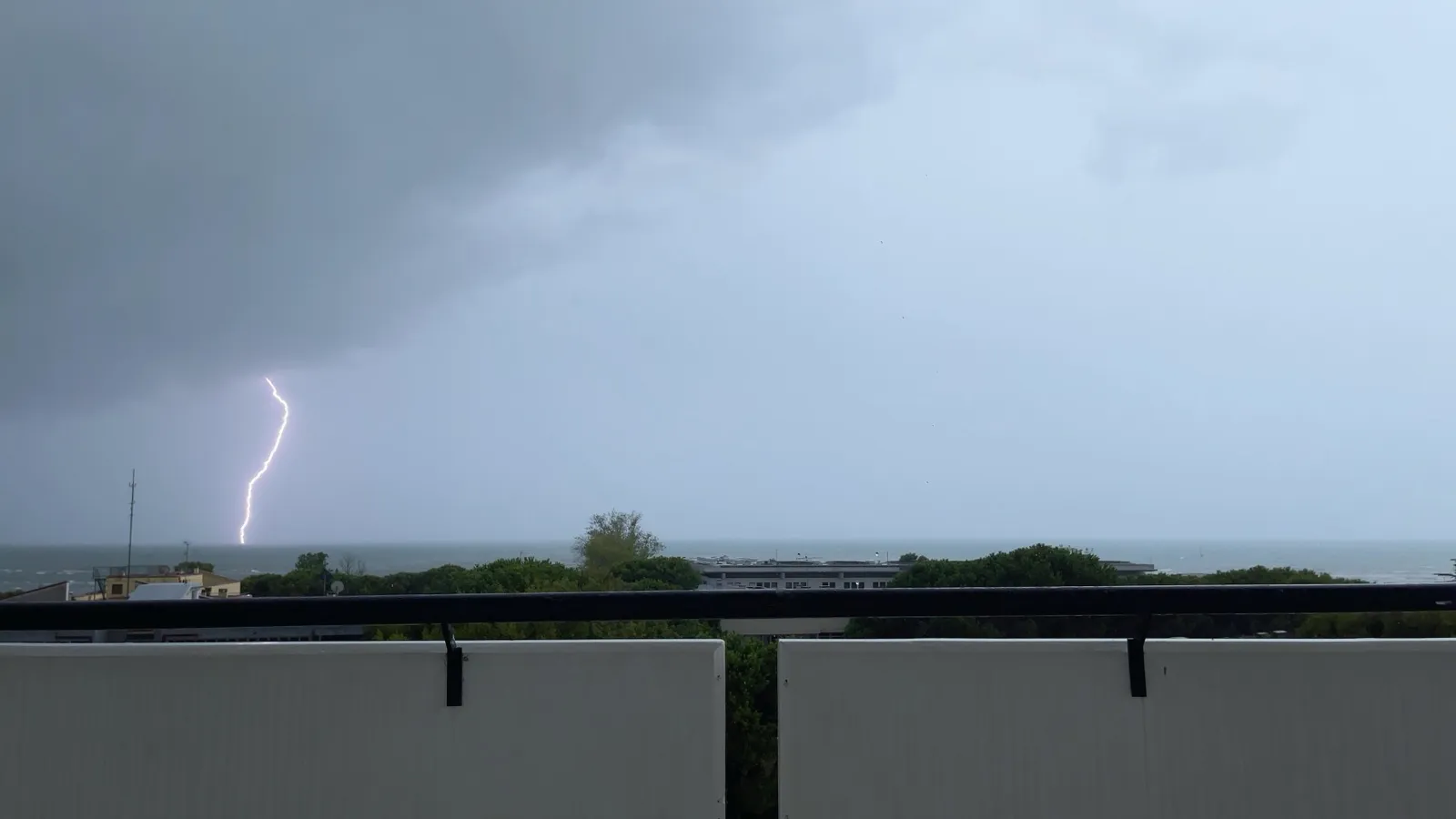
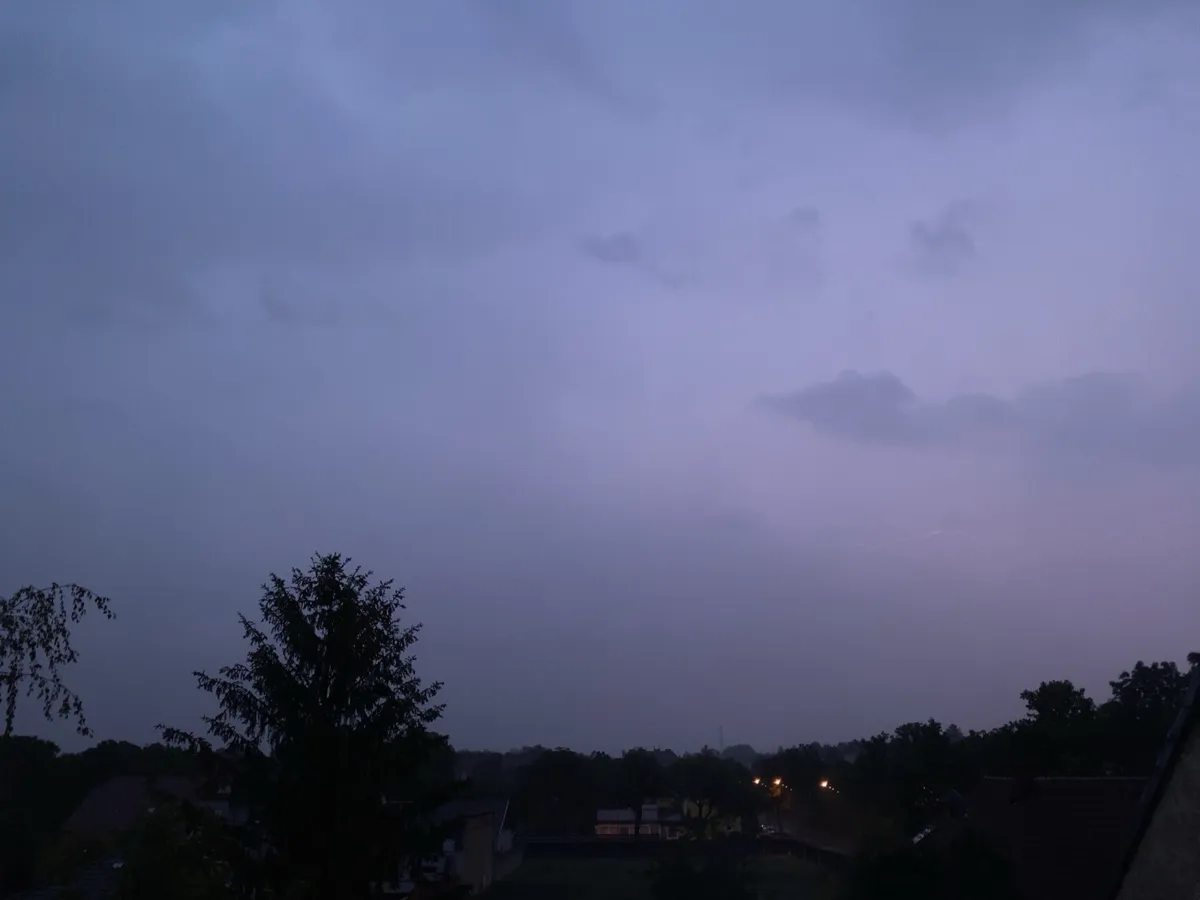
There are storms with a hundred cards and not a single line, and storms with twenty cards and ten excellent images. From the iLightningCam AI manual, chapter 7
In-app purchase · one-time · Family Sharing · no subscription
iLightningCam Studio
An optional package for image editing made for lightning. The originals always stay unchanged.
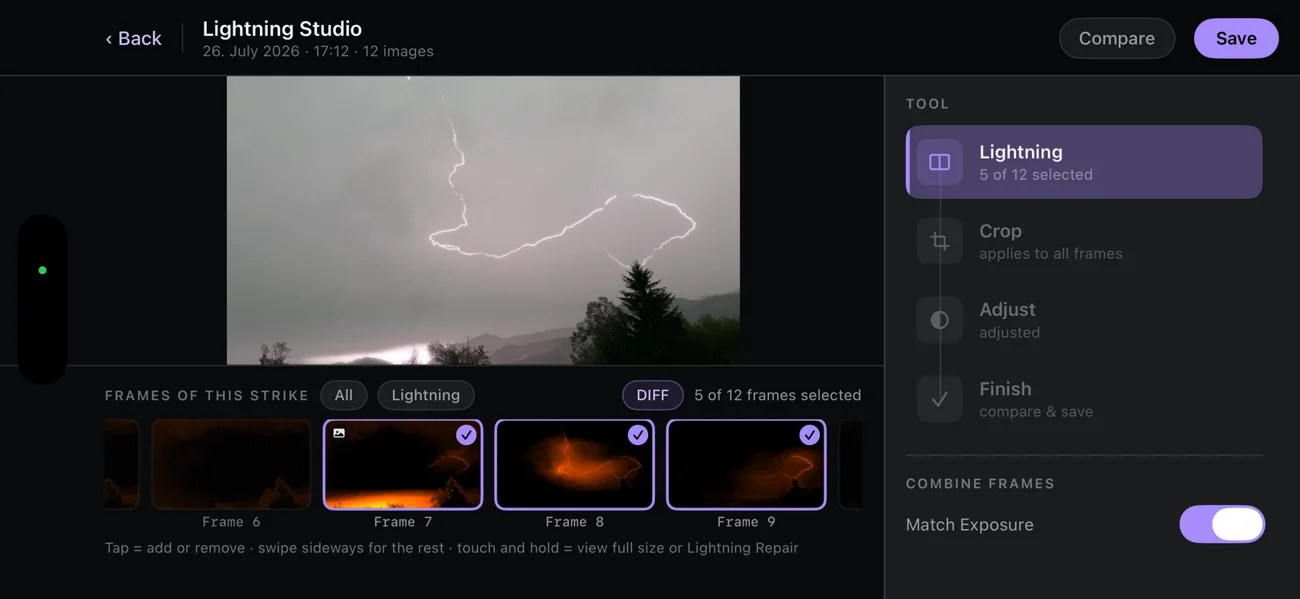
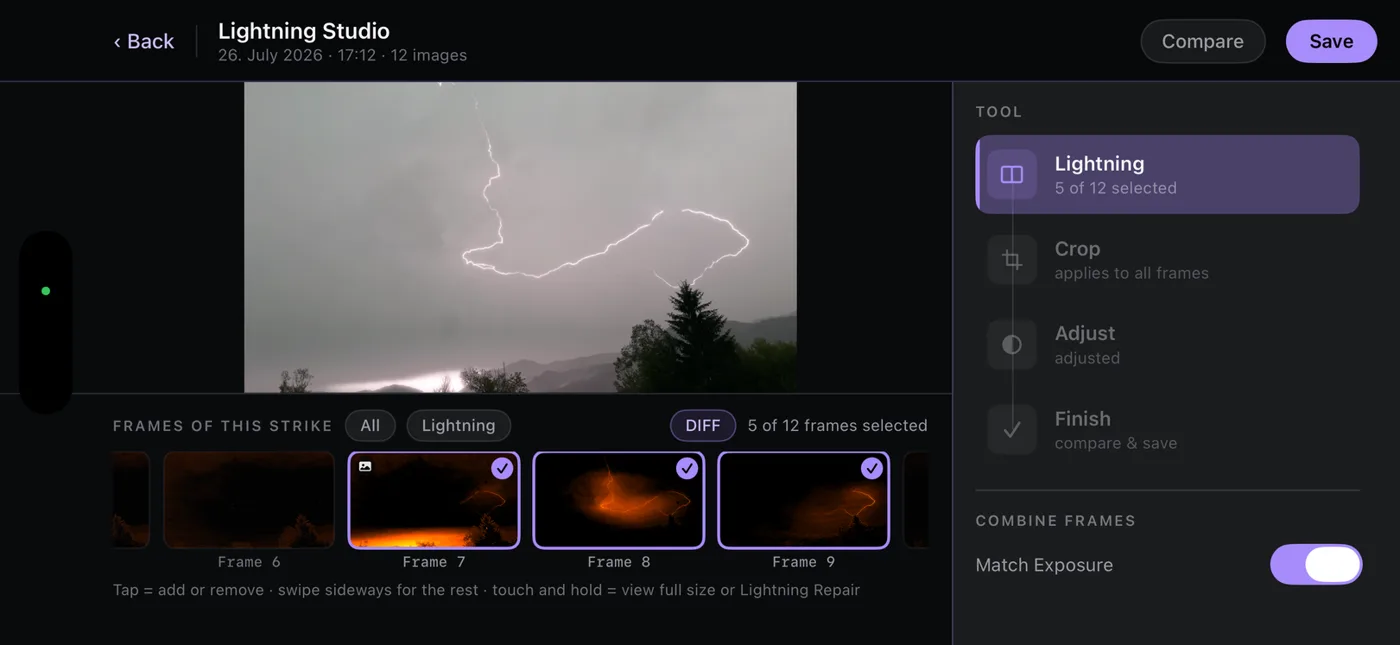
Combine frames
The app stacks all frames of a strike automatically. In the Studio you choose which ones go in, so a frame with a bright band can stay out, and every channel you want is added in.
Lightning Repair
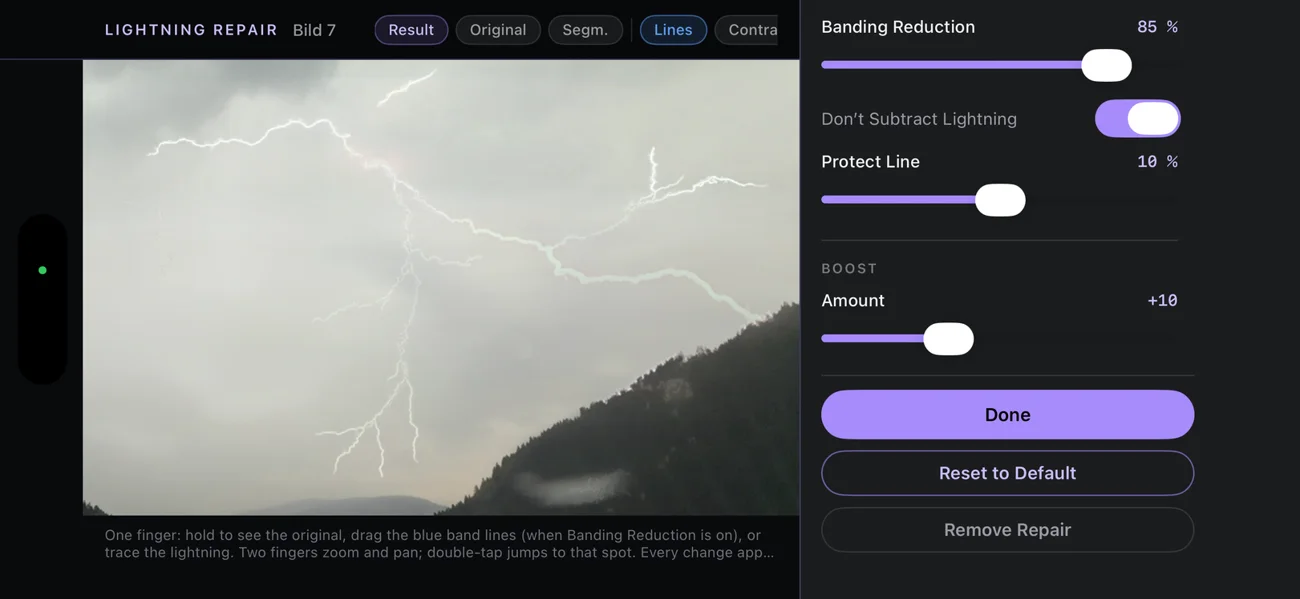
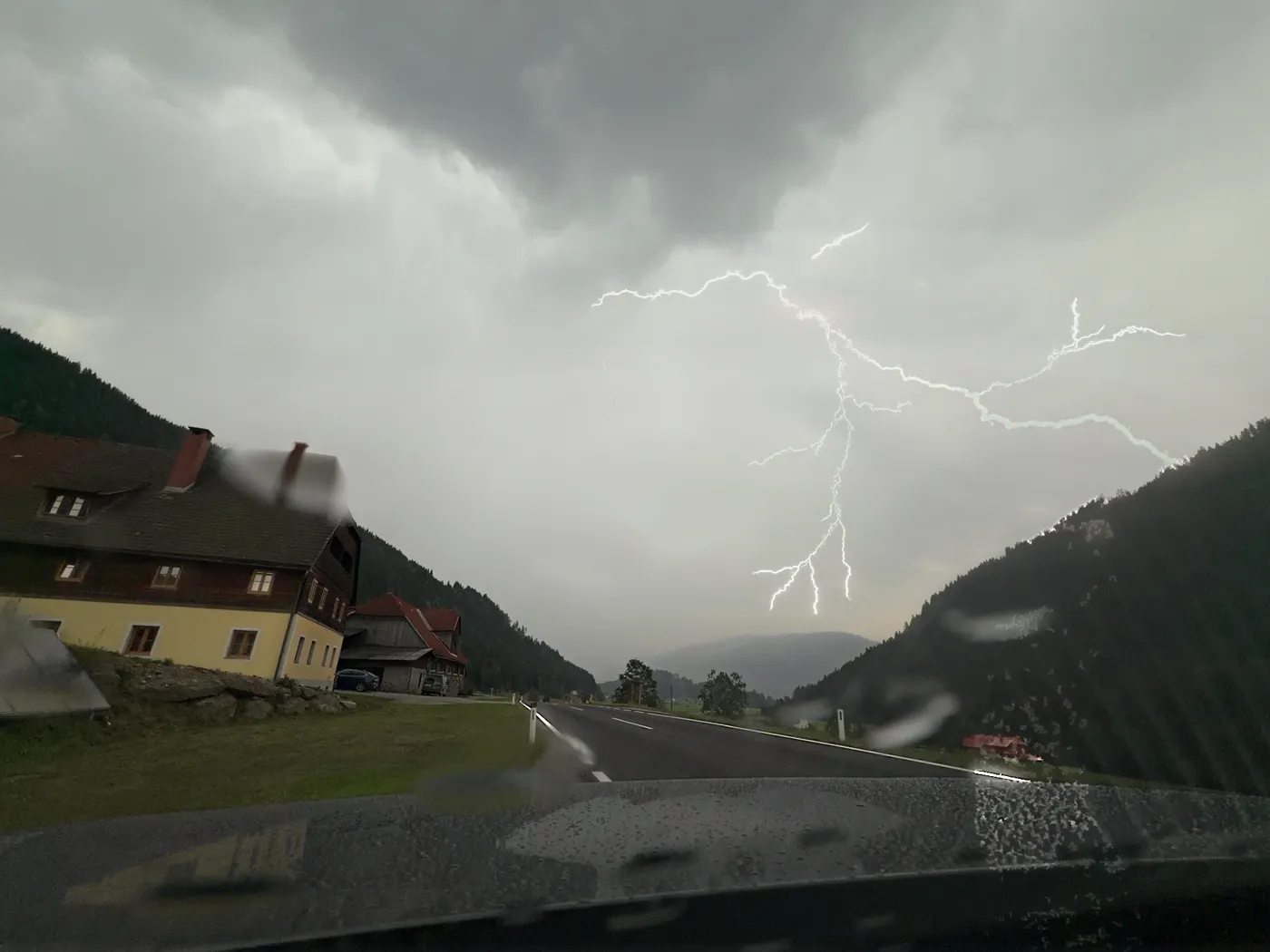
The iPhone sensor reads an image line by line. A very bright, ultra-short strike lights up only some of those lines and leaves a bright band. Lightning Repair finds the channel, boosts it, removes dark fringes and softens the band.
Many artifacts can be reduced a lot. With very strong artifacts a complete correction is not always possible.
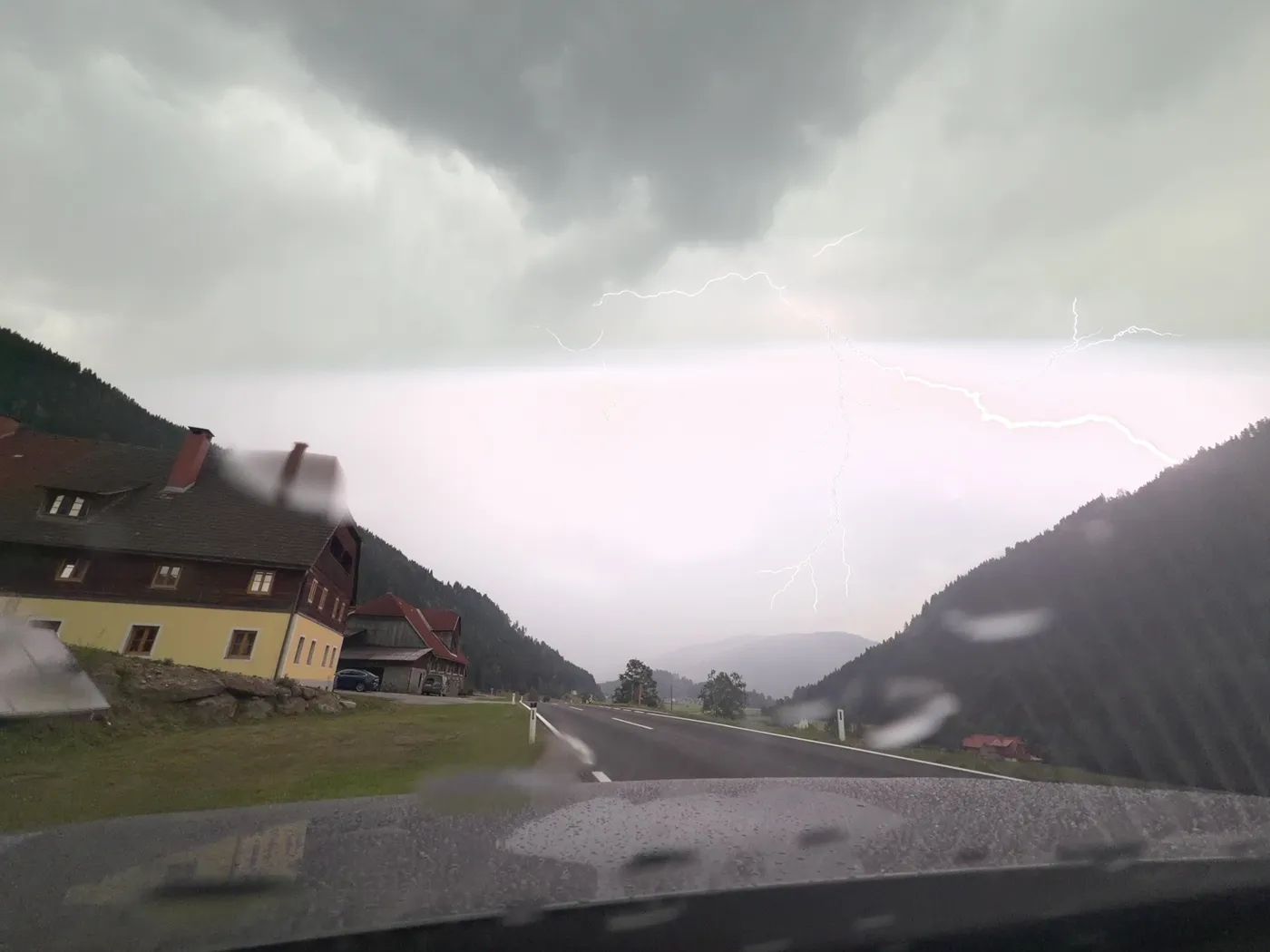
 OriginalRepaired
Real strike captured with iLightningCam AI, 2026. Drag to compare.
Lightning Repair in action
Automatic detection measures the channel's length and width. If it misses a branch, trace it yourself. Hold to see the original, two fingers to zoom.
Live Photo · Video clip
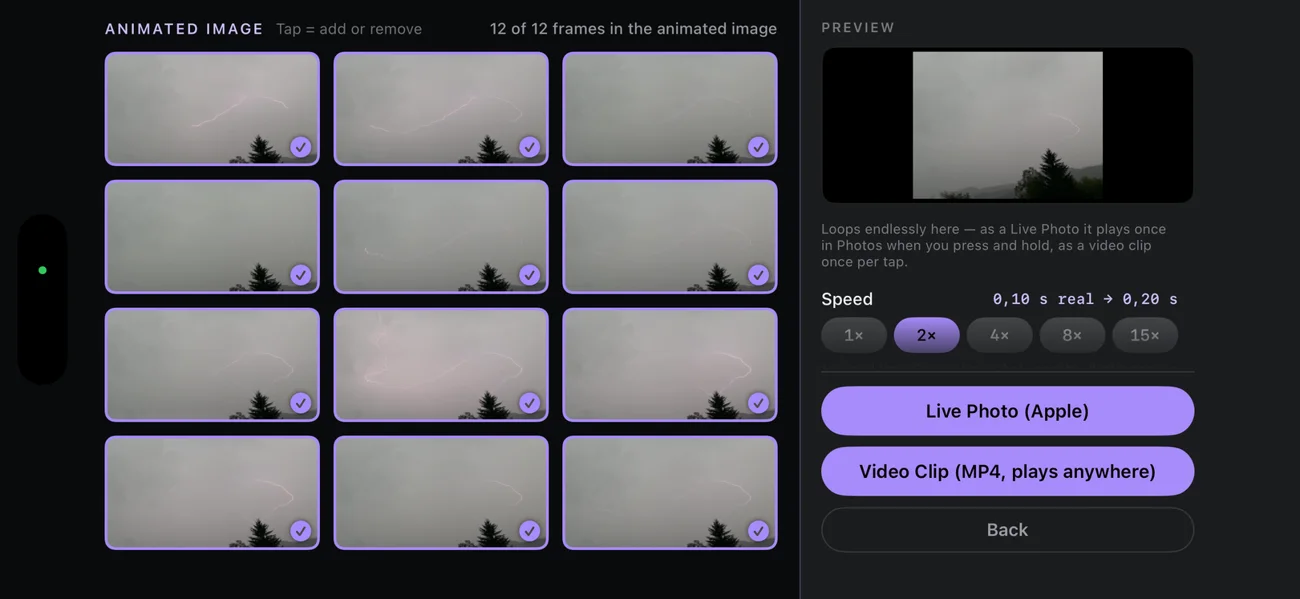
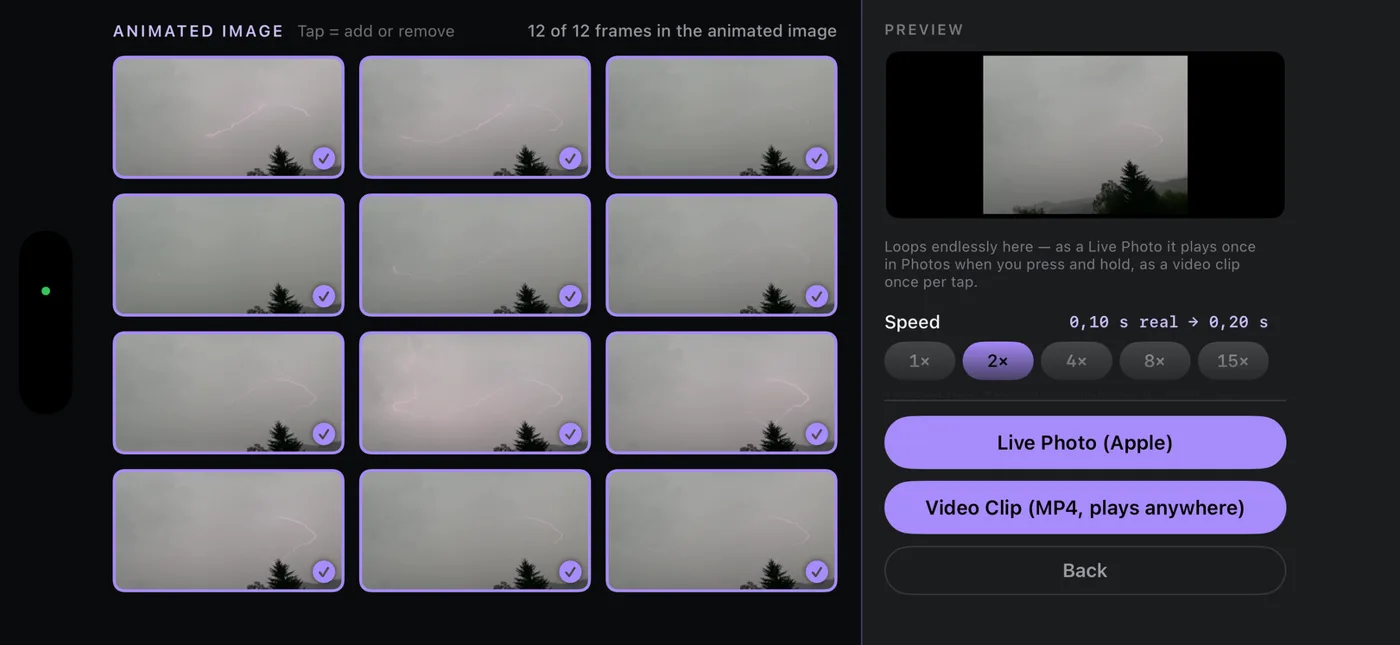
Turn the frames of one strike into a Live Photo for the Photos app or an MP4 clip that plays anywhere. Choose the frames and the speed, from 1× to 15× slower.
Time-lapse
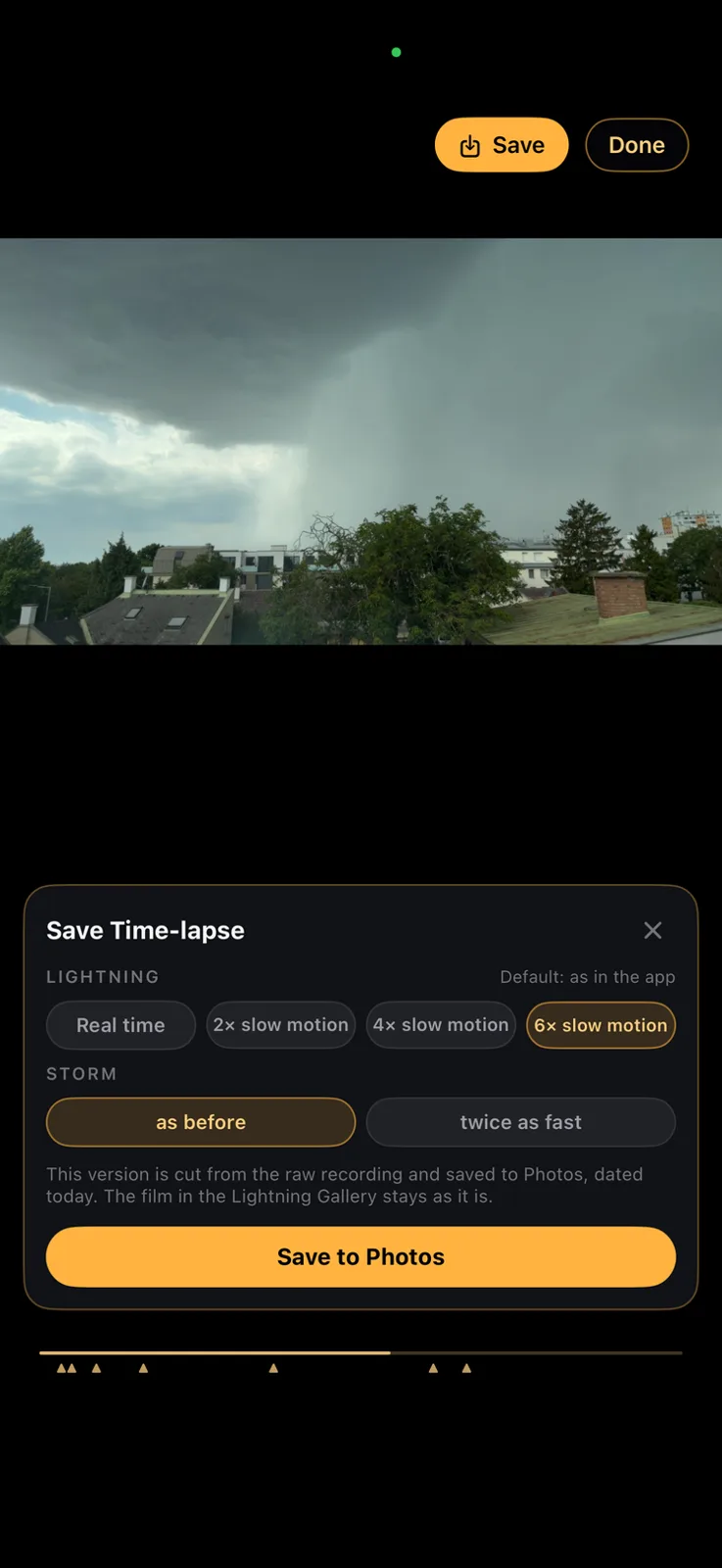
While detection runs, the app can film the whole storm. When saving, choose the speed of each separately. The film in the gallery stays as it is.
Lightning
Storm
The Studio edits strikes captured with iLightningCam AI. Images from iLightningCam 2 or other apps are not supported.
Privacy
The app sends nothing to the internet. No account, no tracking, no cloud processing. Strikes stay in the app, and what you save goes to your Photos library.
Safety first
The app is built for photographing from indoors. No picture is worth going outside for.
FAQ
iPhone with iOS 17 or later and iPad with iPadOS 17 or later. The app picks the capture mode that suits your device, lens and the light.
No. iLightningCam AI is a free update for owners of iLightningCam 2. Only the optional Studio package is a separate purchase.
It is a one-time in-app purchase. The App Store shows the price in your local currency. Family Sharing is included, and there is no subscription. After switching devices, “Restore Purchases” brings it back.
Yes. Detection in iLightningCam AI is more sensitive and more robust by day than before, and DIFF helps you spot the channel against a bright sky.
Usually the strike was inside or behind the cloud, behind rain, or outside the frame. Switch DIFF on. If no line shows there either, it was sheet lightning. More sky and less zoom help.
The sensor reads the image line by line. A very bright, very short strike only lights some of those lines. The frame before or after is often clean, and Lightning Repair in the Studio can soften the band.
It works, but with far fewer hits. Any movement pauses detection so it is not mistaken for lightning. A small tripod or a steady windowsill is enough.
Strikes stay in the app until you save them. Saved images go to the Photos app, filed under the day you save them. App data is not part of the iCloud backup, so save important images before switching devices.
Camera and screen stay on, so charge before the storm. A storm can produce many images; the app shows how many strikes still fit and stops saving at 1 GB of free space.